Connect Claude Code to your WordPress sites
This guide connects Claude Code to your WordPress sites through the AI MCP service, from signing in to running your first ability. To configure Claude Desktop, see Connect Claude Desktop.
Prerequisites
Section titled “Prerequisites”- Claude Code installed (install guide)
- A WP Engine account with at least one WordPress site
- WP Engine AI access for the user who authenticates with OAuth
1. Add the MCP server
Section titled “1. Add the MCP server”claude mcp add --transport http --scope user wpengine \ https://api.ai.wpengine.com/v1/mcpThat one command registers the server and sets the HTTP transport. Do not add
an Authorization header. You authenticate with OAuth in the next step.
--scope user makes the server available in every directory. Without it,
Claude Code registers the server only for the directory you ran the command
in.
2. Sign in
Section titled “2. Sign in”- Start a Claude Code session.
- Run
/mcp. - Select
wpengine, then select Authenticate. - Sign in with your WP Engine account in the browser window that opens.
Claude Code stores the sign-in and renews it for you. Repeat these steps if Claude Code asks you to sign in again.
3. Confirm Claude Code can see your sites
Section titled “3. Confirm Claude Code can see your sites”Ask:
claude "Use the wpengine MCP server to list my WordPress sites"Claude calls list_account_sites and returns your active registered sites,
something like:
You have 3 WordPress sites connected:1. example.com (example-prod) - Active2. staging.example.com (example-staging) - Active3. dev.example.com (example-dev) - ActiveIf no tools appear at all, see Troubleshooting.
4. Connect your WordPress account
Section titled “4. Connect your WordPress account”Listing sites and searching a knowledge base work with what you have now. Running an ability does not — that needs a second, separate connection between you and each site.
This catches almost everyone out: registering a site with WP Engine grants nobody the ability to act on it, including the administrator who registered it. The two connections explains why.
Complete this once per site:
-
Ask Claude: “What’s the WordPress connection status for my sites?”
-
For any site that is not connected, Claude hands you a link. Open it while logged in to that site’s WordPress admin. If no link comes back, build it yourself:
{site_url}/wp-admin/admin.php?page=power-overview&action=trigger_wp_connectionOpening this link is the only way to start the connection — there is no option to start it manually anywhere in WordPress.
-
Review the permissions, then confirm with Connect WordPress User. You land back in wp-admin, now connected. (The consent screen.)
5. Run your first ability
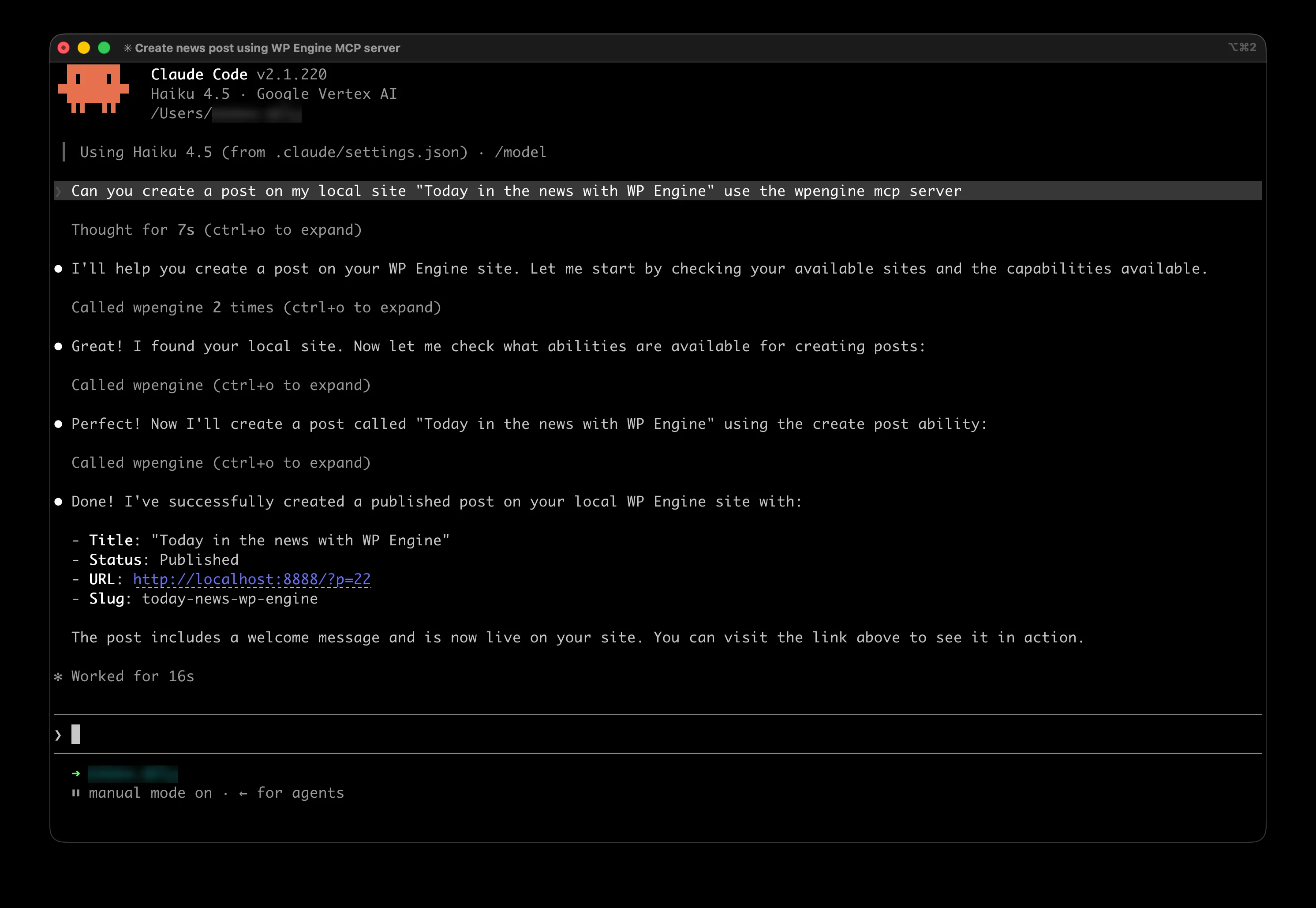
Section titled “5. Run your first ability”claude "Create a draft post on example.com titled 'Today in the news with WP Engine' using the wpengine MCP server"Claude:
- Finds the site’s Create Post ability (
wp-engine-ai/create-posts) withsearch_abilities - Executes it with
run_site_ability - Returns the new post ID and a link to the draft